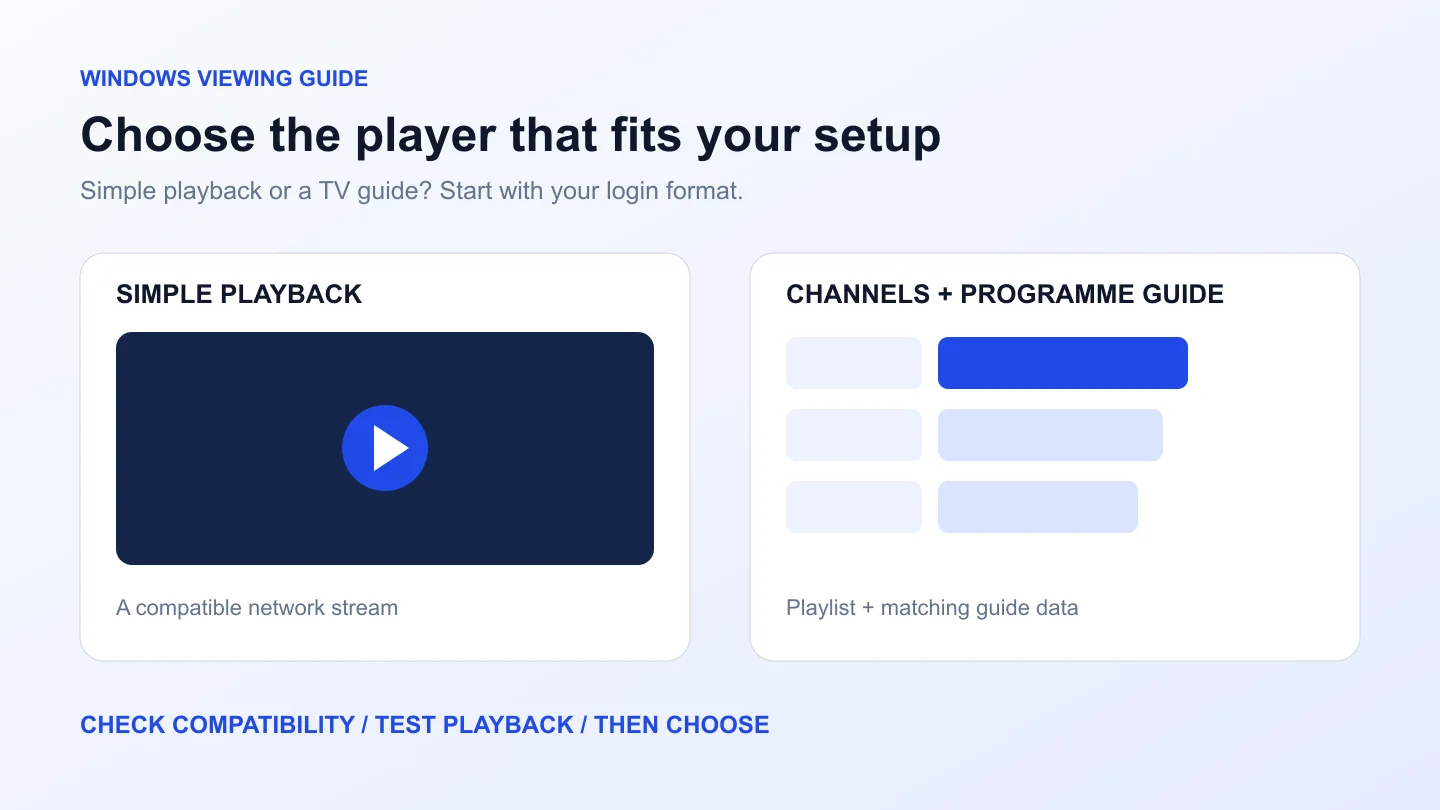
The best IPTV player for Windows is the one that accepts your subscription’s login format and gives you the controls you need. Start with VLC for straightforward network playback; consider Kodi with IPTV Simple Client for an M3U-based TV guide. Before paying for any app, check compatibility with your provider and try a stream on your own PC.
Check your player before committing
Already considering OvioTV? Choose Windows when requesting a trial and confirm the compatible player and login format with the team.
An IPTV player is not a TV subscription
A Windows IPTV player displays streams; it does not automatically supply the channels. You need an authorised source, and sometimes a separate app licence. Paying for software does not necessarily pay for the content. Keep those two purchases separate when comparing costs.
Check the available channel categories independently of the app you choose. A player cannot add a missing channel, extend an expired subscription or increase your account’s simultaneous connections.
Choosing the best IPTV player for Windows
These are practical starting points, not a speed ranking. This comparison uses the developers’ documentation; it is not a hands-on performance benchmark. No app is guaranteed to eliminate buffering.
| Your priority | Starting point | Check first |
|---|---|---|
| A quick stream check | VLC | A compatible network URL |
| TV channels and an EPG | Kodi + IPTV Simple Client | M3U playlist and XMLTV guide |
| Provider-specific login | A provider-supported Windows app | Exact login method and app fees |
VLC: start with straightforward playback
VLC is a sensible first check when you have a network URL. In the Windows desktop interface, open Media → Open Network Stream, paste the supplied address and select Play. These steps follow the official VLC media guide. Use the correct address, not a provider’s ordinary website URL.
Choose it for a simple playback check rather than assuming it has the same subscription dashboard or guide interface as a dedicated TV app. If you only receive a username, password and server address, ask which input format the provider supports.
Kodi: consider a TV-guide workflow
Kodi is a media centre available for Windows. Its IPTV Simple Client add-on supports M3U playlists and XMLTV programme-guide data. That makes it worth considering when channel browsing and an EPG matter more than a minimal playback window. Use the official Kodi Windows download and its repository rather than a repackaged installer.
There is more configuration to understand: the playlist identifies your channels, while the guide source supplies programme information. Follow the IPTV Simple Client documentation for the installed version. Kodi does not supply a subscription or channels for you.
A dedicated Windows app: match the login method
If your provider recommends a particular app, confirm that a native Windows version exists and supports your credentials. Check whether its licence is free, one-time or recurring. A phone app with a similar name is not proof of Windows compatibility, and an Android APK is not a native Windows installer.
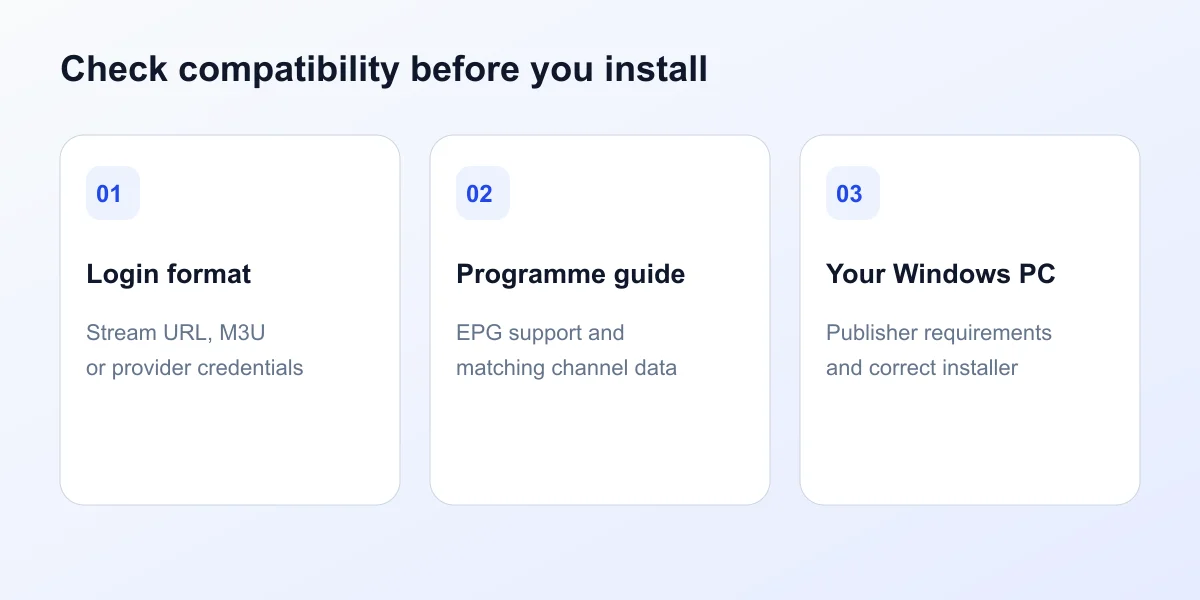
Check these four things before installing
- Login format: find out whether you receive an M3U URL, a stream URL or a server/username/password combination. Confirm the app accepts it.
- Guide data: if you want an EPG, check how the app imports it and whether your provider supplies the required source.
- Windows compatibility: read the publisher’s system requirements and choose the correct installer for your PC.
- Everyday controls: try channel switching, audio, subtitles and full-screen viewing. The best player for IPTV on Windows depends on how you actually watch.
Have the app but need compatible access?
Use the OvioTV installation guide to review the Windows setup options before choosing a subscription. Confirm the credentials your chosen app needs.
Set up your IPTV player on a Windows PC
Download the player from its publisher, then use the input option that matches your details. Copy private links carefully: missing characters and accidental spaces can break login or playback. Never paste a credential-bearing playlist into a public forum or online converter.
Start with one stream. Check audio, switch channels and try full-screen mode. If you configured a guide, verify that programme times match your location. Menu names can vary between releases, so use the app’s current instructions when a screen looks different.
Before opening another device, check the connection allowance in your plan. Two players running on the same PC can still create two streams. Compare the device options when you review IPTV subscription plans.
Fix the problem before switching players
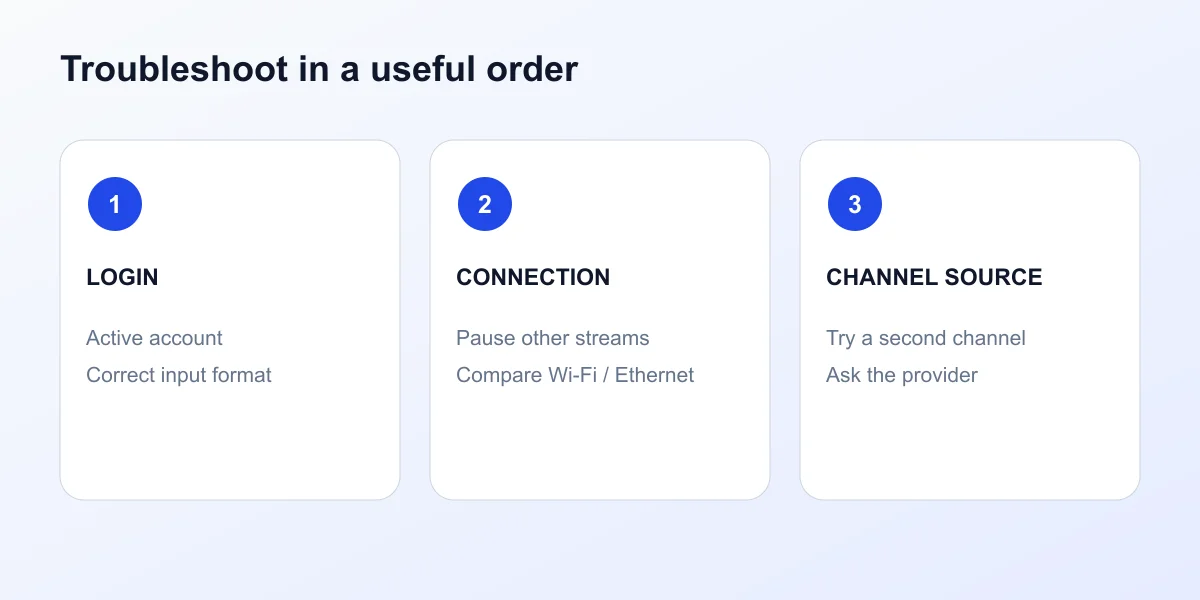
- Nothing loads: confirm your account is active, the address is complete and the selected login method is correct.
- Picture but no guide: check the separate EPG source and channel matching. A working stream does not prove guide data is configured.
- Buffering: pause other streams and downloads, then compare Wi-Fi with Ethernet if available. Try another channel to help separate a connection issue from a single feed problem.
- Problems on several players: do not keep buying apps. Ask the provider to check your account and source, and consult the IPTV help and troubleshooting FAQs.
Windows IPTV player FAQs
What is the best IPTV player for Windows?
There is no single best player for every setup. VLC is a useful starting point for a compatible network stream. Kodi with IPTV Simple Client is an option when you want a TV guide using an M3U playlist and XMLTV data. Match the player to your provider’s supported formats first.
Does a free IPTV player include free TV channels?
No. A player is software for playing content. You must supply your own authorised streams or subscription details. A paid player licence also does not automatically include a TV subscription.
Can I use an M3U playlist on my Windows PC?
Yes, if your chosen player supports the playlist and its stream formats. Use a playlist supplied by your provider and keep links containing account credentials private. Kodi IPTV Simple Client supports M3U playlists; check the setup instructions for your chosen app.
Can VLC use my Xtream Codes username and password?
Do not assume that a player accepting network URLs has a dedicated Xtream Codes login screen. Ask your provider for a compatible stream or playlist URL, or choose a Windows app that explicitly supports your login method.
Why is the picture working but the TV guide is empty?
Playback and guide data are separate. Confirm that your player supports an EPG, that an XMLTV source is configured where required, and that the programme data matches the playlist’s channel identifiers. Check the guide’s time settings as well.
Choose the player, then test the subscription
The best IPTV player for Windows should fit your login format, guide requirements and viewing habits. Start simple, check the official documentation and test before paying for an app or a longer plan. With OvioTV, use the trial to confirm playback on your own PC first.
Ready to try it on your Windows PC?
Request a trial for Windows, confirm your compatible player and check the viewing experience before choosing a paid plan. No credit card required.